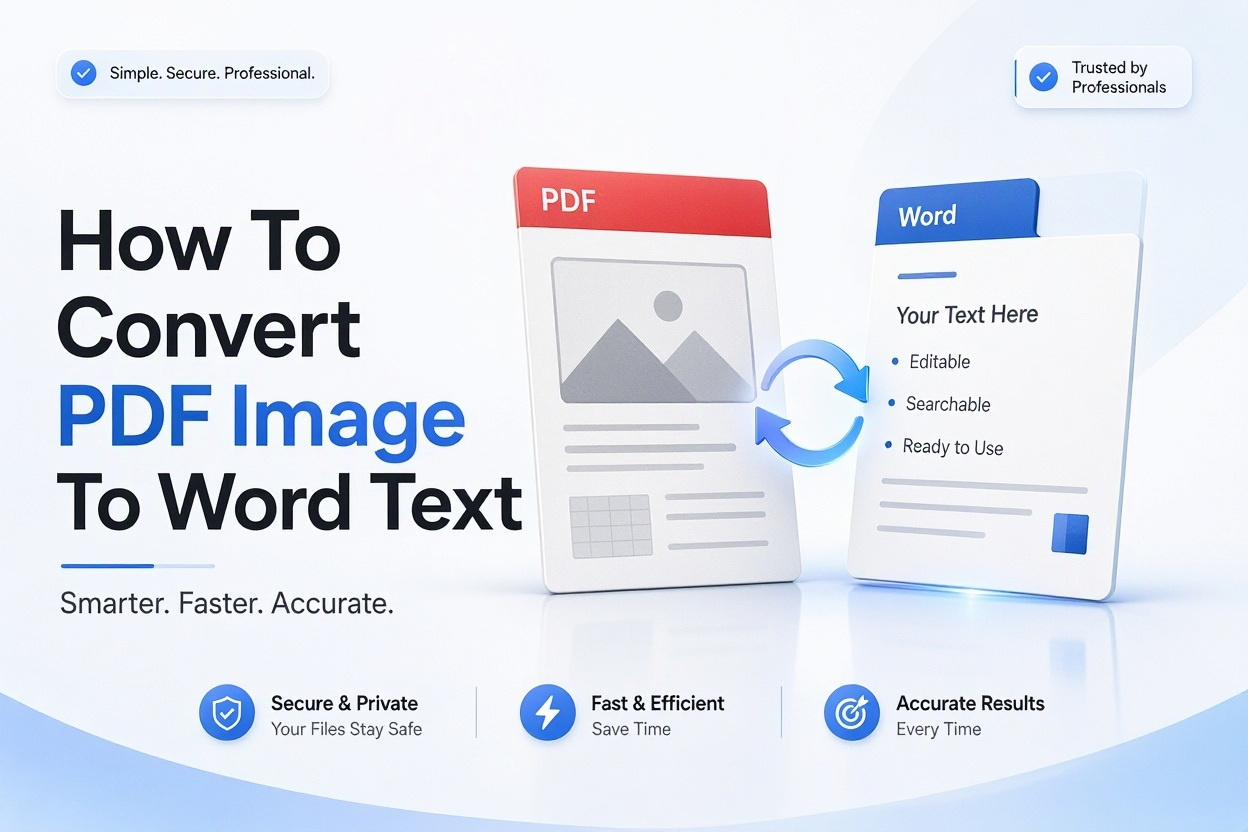
If you have ever opened a PDF only to find you cannot highlight, copy, or edit any of the words, you are dealing with an image-based PDF. Learning how to convert pdf image to word text solves that problem by turning those locked pictures of pages into editable documents you can actually use.
This happens with scanned contracts, photographed receipts, textbook pages, old reports, and PDFs saved from phone cameras. The pages look like text, but your computer sees them as photos. In this article, you will learn exactly why that happens, how to prepare your files for better results, and the most reliable ways to extract editable text using Word, free online tools, desktop apps, and your phone. You will also get practical tips for cleaning up the Word output, fixing errors, and keeping sensitive documents safe.
What Happens When a PDF Contains Images Instead of Text
A normal PDF has a real text layer stored behind the visual layout. You can select words, search the document, and copy paragraphs into Word without trouble. An image PDF is different. Each page is saved as a flat picture, often created by a scanner or camera, so there is no selectable text data for Word to grab.
To make that picture editable, you need optical character recognition, usually called OCR. OCR software studies the shapes of letters in the image, matches them to known characters, and rebuilds them as real text. That is the core step behind every method covered here, from Microsoft Word to mobile scanning apps.
Differences Between Scanned PDFs, Photos, and Exported PDFs
Scanned PDFs come from flatbed scanners or office copiers. They are usually straight, high contrast, and fairly clean, which helps OCR accuracy. Photo PDFs come from phones or cameras and often have shadows, tilt, blur, or curved book pages. Those flaws make recognition harder and need extra cleanup.
Exported PDFs, like those saved directly from Word, Google Docs, or InDesign, already contain selectable text. If you can highlight words with your mouse, you do not need OCR at all. Just open the PDF, copy the content, and paste it into a new Word document to keep the formatting simple.
Preparing Your PDF Image for Accurate Text Conversion
Good results start before you run any conversion. Check whether your PDF has 10 pages or 200 pages, whether pages are straight or skewed, and whether the text is clear or faded. Small checks at this stage save a lot of editing later and help you pick the right tool for the job.
Resolution and clarity matter more than most people expect. Aim for scans at 300 DPI in black and white or grayscale for printed documents. Color is fine for highlighted pages or stamps, but it creates larger files. If the scan looks blurry at 100 percent zoom, rescan it if you can instead of trying to fix poor quality later.
Getting Pages Straight, Clean, and Readable
Tilted pages are one of the biggest reasons OCR produces scrambled words. Most scanner software has a deskew or straighten option, and free apps like Adobe Scan or Microsoft Lens apply it automatically. Take a moment to crop out desk edges, fingers, and dark borders around the page.
Contrast also affects accuracy. Increase brightness slightly and make the background pure white while keeping the letters dark and sharp. Avoid heavy filters that erase punctuation or thin fonts. If the original has coffee stains, pen marks, or highlighted lines, try converting one test page first to see how the tool handles them.
Important facts to check before you convert
- Selectable text test: Try to highlight a sentence. If nothing highlights, you need OCR.
- Language setting: Set the correct language in your OCR tool so accented characters are recognized.
- Page orientation: Rotate sideways or upside-down pages before conversion.
- Font size: Very small print under 8pt and decorative script fonts lower accuracy.
- File size: Split PDFs over 100 MB into smaller parts for online tools.
Using Microsoft Word to Extract Text from Image PDFs
Microsoft Word on Windows and Mac can open PDFs and attempt to convert them into editable documents. For PDFs with real text, this works well. For scanned image PDFs, newer versions of Word will try basic conversion, but the output often needs more correction than dedicated OCR software.
To try it, open Word, choose Open, select your PDF, and allow Word to convert the file. Save the result as a .docx file right away so you do not overwrite the original. Review the text carefully, especially tables, headers, footers, and multi-column layouts, because those elements often shift during conversion.
When Word Works Well and When It Falls Short
Word is a solid choice for short, clean scans with simple layouts, like a one-page letter or typed form. It keeps basic bold, italics, and paragraph breaks without requiring another app. Pair it with OneDrive if you want quick access across devices.
Word struggles with low-resolution scans, handwriting, complex tables, and non-English characters. It also does not let you train recognition or adjust OCR settings. For those cases, use a dedicated OCR step first, then bring the recognized text into Word for final editing. [Internal Link: Microsoft Word Document Formatting Tips]
Online OCR Tools for Quick PDF to Word Conversion
Online converters are convenient when you need one or two files converted fast and do not want to install software. Most work the same way: you upload the image PDF, choose Word .docx as output, select the document language, and download the result after processing.
Popular options include Adobe Acrobat online, Smallpdf, iLovePDF, and Google Drive with Google Docs. Google Drive is especially useful because you can upload the PDF, open it with Google Docs to trigger free OCR, then download or copy the text into Word. Always check privacy policies before uploading contracts, medical records, or financial statements.
Exact steps for a clean online conversion
1. Make a copy of your original PDF so you always have a backup.
2. If possible, split large files into sections under 25 pages for faster uploads.
3. Upload the file to your chosen converter and select DOCX as the output format.
4. Set the correct OCR language and enable deskew or enhance if offered.
5. Run the conversion and download the Word file immediately.
6. Compare the first two pages side by side with the original scan.
7. Fix broken line breaks, hyphenated words, and misread characters like 0 and O.
Desktop Software for High Volume Document Work
If you convert reports, books, archives, or client files every week, desktop software pays for itself in accuracy and batch processing. Adobe Acrobat Pro, ABBYY FineReader, and Nitro PDF Pro all include stronger OCR engines than most free websites and handle hundreds of pages at once.
These programs let you control image preprocessing, choose multiple recognition languages, preserve original layout, and export directly to Word with styles intact. ABBYY is known for excellent retention of tables and columns. Adobe is strong if you already work inside Acrobat for editing and signing PDFs.
Choosing Between Free and Paid Desktop Options
Free desktop options like PDF24 Creator or the built-in Preview and OCR features in OneNote can handle occasional clean scans. They are fine for students or home use where perfect layout is not critical. Paid tools add batch queues, searchable PDF creation, redaction, and better handling of poor-quality originals.
Think about volume, layout complexity, and privacy needs. If you process more than 30 pages per week, need exact table formatting, or cannot upload files to external servers, a local desktop license makes daily work faster and more consistent.
Feature comparison in plain words
- Adobe Acrobat Pro: Best for professionals already using PDF editing, strong layout retention, subscription cost, runs on Windows and Mac.
- ABBYY FineReader PDF: Best for accuracy on multi-language and complex layouts, one-time or yearly pricing, excellent table recovery.
- Nitro PDF Pro: Best value for office batch conversion, solid Word export, Windows focused with limited Mac features.
- Free tools like PDF24 and OneNote: Best for occasional simple scans, no cost, fewer layout controls and no batch automation.
Converting Scanned PDFs on Mobile Devices
Phone apps are ideal when the original is paper and you do not have a scanner nearby. Apps like Adobe Scan, Microsoft Lens, Apple Notes, and Google Drive capture pages with your camera, straighten them, enhance contrast, and run OCR in one flow.
For best results, place the paper on a dark background in bright, even daylight. Hold the phone parallel to the page and let the app detect the edges before capturing. Capture each page separately instead of photographing a whole open book, which creates curved lines and uneven focus.
From Phone Scan to Editable Word File
After scanning, most apps let you save as PDF, run text recognition, and share to Word or OneDrive. In Microsoft Lens, choose the Actions mode or save to Word after scanning. In Adobe Scan, save the scan, then use Recognize Text and share the file to Word for cleanup.
Check proper nouns, numbers, and punctuation on a small screen before sending the file to your computer. Zoom in to 150 percent to catch errors like rn read as m, or cl read as d. Rename the file clearly with date and topic so it is easy to find later.
Cleaning and Formatting Word Output After Conversion
No OCR result is perfect, so plan on a short cleanup pass. Start by showing hidden formatting marks in Word to spot double spaces, manual line breaks, and extra paragraph marks left over from the scan. Replace double spaces with single spaces and join sentences that were split across lines.
Next, rebuild styles instead of fixing each paragraph by hand. Apply Heading 1, Heading 2, and Normal styles to titles and body text. This fixes inconsistent font sizes and makes the document easy to navigate. Reinsert page numbers, headers, and footers manually rather than keeping the garbled versions from OCR.
Fixing Tables, Columns, and Images
Tables often come through as tabbed text or misaligned rows. The fastest fix is to select the messy text, use Convert Text to Table in Word, and set the correct number of columns. Check merged cells and totals row by row against the original PDF image.
For two-column articles, convert to single-column text first, clean the reading order, then reapply columns if needed. Keep original images and charts as pictures anchored near the relevant paragraph. Add captions below them so the final Word document reads naturally. [Internal Link: Word Table Formatting Tutorial]
Common mistakes that create extra cleanup work
- Accepting the first conversion without proofreading numbers, dates, and names.
- Keeping every manual line break from the scan, which breaks paragraph flow.
- Pasting OCR text over old styles instead of using Clear Formatting first.
- Ignoring reading order in multi-column pages, mixing sentences together.
- Deleting original images that contain stamps, signatures, or diagrams readers need.
Handling Low Quality Scans and Handwritten Notes
Faded faxes, old books, and carbon copies need extra patience. Increase contrast, convert to grayscale, and enlarge the page to 125 percent before running OCR. If letters are broken or touching, try a different OCR engine, since each one handles damage differently. Sometimes Adobe reads a page better than Google, or vice versa.
Handwriting is a separate challenge. Printed handwriting guides and neat block letters convert reasonably well with tools that support handwriting recognition. Cursive, slanted notes, and mixed print and script produce much lower accuracy. For short notes, retyping is often faster than correcting dozens of misread words.
Practical Options for Difficult Originals
For stubborn pages, convert in small chunks. Run OCR on one difficult page at a time with enhanced settings rather than processing a whole 200-page file at once. This lets you test language settings, brightness levels, and output formats without waiting through repeated full conversions.
If the document matters legally or academically, have a second person verify names, figures, and citations. OCR commonly confuses 1 with l, 5 with S, 8 with B, and commas with periods. Reading the Word output aloud while viewing the original scan is a simple way to catch those subtle errors before sharing the file.
Protecting Privacy When Converting Sensitive Documents
Image PDFs often contain tax details, medical histories, legal agreements, or employee data. Uploading those files to a random free website can create privacy risks, even if the site promises to delete files after an hour. Always read the data retention policy and prefer tools that process files locally when possible.
For sensitive work, use offline software like Adobe Acrobat Pro, ABBYY, or Microsoft Word on your own computer. If you must use an online service, choose a reputable provider with encryption, clear deletion timelines, and compliance statements. Remove metadata and redact account numbers before uploading if the full document is not needed.
Safe Handling Checklist for Private Files
- Use offline OCR for tax, medical, legal, and HR documents whenever possible.
- Check if the online tool stores, trains on, or shares uploaded files.
- Redact or cover signatures, account numbers, and ID photos before testing.
- Download results immediately and delete files from the web history.
- Use a work VPN and updated browser when handling client data.
- Keep originals in an encrypted folder and limit sharing to final Word files.
Choosing the Right Method for Your Situation
The best workflow depends on page count, quality, layout, and privacy. A one-page clean scan can go straight through Word or Google Drive. A 150-page report with tables deserves desktop OCR with batch processing. A stack of paper receipts is fastest with a phone scanner that exports to Word.
Match the tool to the task instead of using the same site for everything. Test two methods on the same three sample pages and compare accuracy, formatting, and time spent on cleanup. The method with the fewest corrections usually wins, even if conversion takes a minute longer upfront.
Quick decision tips for everyday use
- Need speed for 1 to 5 pages: Use Google Drive OCR or a trusted online converter.
- Need accuracy for tables: Use ABBYY or Acrobat Pro with layout retention on.
- Need mobile capture: Use Lens or Adobe Scan, then export to Word.
- Need privacy: Stay offline with desktop software and local storage.
- Need handwriting: Expect manual edits and budget time for proofreading.
- Need large archives: Batch process overnight and review in sections.
Conclusion
Clean scans turn into editable Word files in minutes, while blurry photos and complex tables need more preparation and proofreading. Choose simple tools for short files and stronger desktop software for long or sensitive projects. Always proofread names and numbers, rebuild styles, and keep a copy of the original PDF. Once you practice the steps above, you will know how to convert pdf image to word text reliably without losing formatting or wasting time on repeated conversions.
Frequently Asked Questions
Most Accurate Way to Get Word Text From a Scanned PDF?
Use desktop OCR like Adobe Acrobat Pro or ABBYY FineReader at 300 DPI with the correct language set. They preserve layout better than free sites and need less manual cleanup for tables and multi-column pages.
Free Method to Turn Image PDF Pages Into Editable Text?
Upload the PDF to Google Drive, open it with Google Docs to run free OCR, then copy the text into Word. It works well for clean, typed pages and supports many languages at no cost.
Why Converted Word Text Shows Scrambled Characters and Broken Layout?
Low resolution, tilted photos, shadows, decorative fonts, and multi-column layouts confuse OCR. Rescan at higher contrast, straighten pages, set the right language, and convert difficult sections separately for better accuracy.
How to Convert PDF Image to Word on iPhone or Android?
Scan with Adobe Scan, Microsoft Lens, or Apple Notes, let the app enhance and recognize text, then export or share directly to Word. Capture in good light on a flat surface for the clearest results.
Can Handwritten Notes in a PDF Be Converted to Word Text?
Neat block handwriting can convert with fair accuracy using handwriting-capable OCR, but cursive often needs manual correction. For long or messy notes, proofread carefully or retype key sections for best quality.